Copilot At Schwab
GitHub Copilot is the application that Schwab is using to let employees access LLM (Large Language Model) capabilities. Common LLMs are ChatGPT, Gemini, and Claude.
GitHub Copilot Chat, accessed through an extension in your favorite supported IDE, is how developers access Copilot at Schwab. Developers type prompts which are commands or questions that are then sent to a selected LLM for a response.
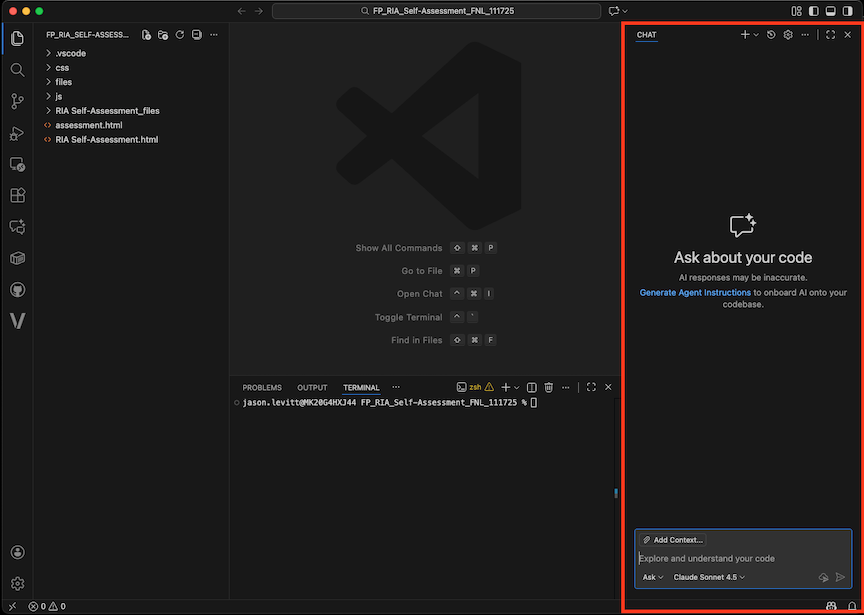 GitHub Copilot Running in VS Code (highlighted with a red border)
This documentation site is currently focused only on developer productivity using Copilot.
There is an internal Copilot for MS365 pilot program still underway (announcement here) that expands Copilot to web browsers and MS desktop apps. GA is expected in early 2026.
Limitations
Schwab has a Copilot Business license which comes with many features.
However, at Schwab, not all features are enabled. You can look this page in your GitHub account to see which features are enabled.
Things that are not currently possible in Schwab's current configuration:
- You cannot do automated workflows because the Copilot API and CLI are not enabled.
- You cannot access copilot anywhere except in your IDE (VS Code, Intellij, PyCharm, etc).
- Copilot will not offer you source code from non-Schwab GitHub repos or from the Internet.
Token restrictions
If you exceed token limits for either input or output, you will see an error in your Copilot chat window. If you work with large documents, log files, or data sets, it's a good idea to be aware of your token limitations.
What Is A Token?
A token is the basic unit of text that a Large Language Model (LLM) processes. It can be a word, a part of a word, a number, or a piece of punctuation. LLMs break down all input and output into tokens.
As a rule of thumb for English text:
- 1 token ≈ 4 characters
- 1 token ≈ ¾ of a word
- 100 tokens ≈ 75 words
For example, the phrase GitHub Copilot is great! might be broken down into the following tokens: ["Git", "Hub", " Cop", "ilot", " is", " great", "!"].
Everything you provide as input (your prompt, the code you reference, your conversation history) and everything the model generates as output consumes tokens. This is why there are limits on prompt size and response length.
Determining Your Token Limits
If you need to signup for Copilot and install it, see the Copilot Getting Started page.
To see your token input limit for a given session (limits may change and may be dependent on the LLM that you choose):
- Do CMD-SHIFT-P to open the developer prompt
- Search for, and select,
Developer: Set Log Level... - Select
Trace - Go to the top of your terminal window area and click on
OUTPUT - Also at the top of your terminal window area, select
Github Copilot Chatin theTasksmenu. - Enter some prompt into the Copilot chat window
You should see the OUTPUT window scroll and display informational data:
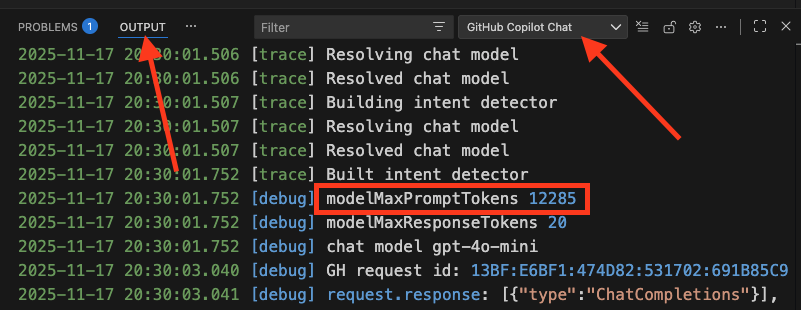
Notice that the image above shows log output for both modelMaxPromptTokens and modelMaxResponseTokens.
-
modelMaxPromptTokens: This is the maximum number of tokens that can be included in the input sent to the model. This input is a combination of your current prompt, the conversation history, and any code or files you've included in the context. In this example, the limit is12,285tokens. -
modelMaxResponseTokens: This is the maximum number of tokens the model is allowed to generate for its output, or response.
modelMaxReponseTokens is a limit set by your LLM:
- For a normal chat response, where you ask a question or request code, this value will be much higher (e.g.,
4096,8192, or more) to allow for a detailed answer. - For a background task, like automatically generating a title for the chat session, Copilot sends a request like "Summarize this conversation in a few words." For this, it sets a very low limit like
20because it only needs a short, concise response.
It's probably a good idea to set your log level back to info (or whatever your default level is). Otherwise, you'll accumulate huge log files.
Getting Support For GitHub Copilot
You can ask a question in the Schwab AI Discussion Channel: https://github.com/orgs/charlesschwab/discussions/categories/artificial-intelligence
Also, browse the general discussion channels for related topics: https://github.com/orgs/charlesschwab/discussions
You can submit a support ticket here: System Engineering Support
Keep Track Of The Latest Features
Copilot is moving quickly and even minor point releases may contain interesting and/or substantive changes.
There are three pieces of software where updates may add new AI features: